Last Updated: January 27 2026
How to Manage the Service Catalog
Overview
The Service Catalog lets you manage service details used when sending emails to your customers. Each catalog item should represent a familiar type of service, such as installation, maintenance, or inspection. Keeping your catalog clear and well organised helps ensure customers receive relevant and varied emails.
Click the Service Catalog tab to view, edit or add services.
Service Catalog is a way to group similar types of services together. By organizing services into catalogs, you can better identify and manage different service types. This helps your business send targeted service emails for different purposes to the right customers.
 Add a Service
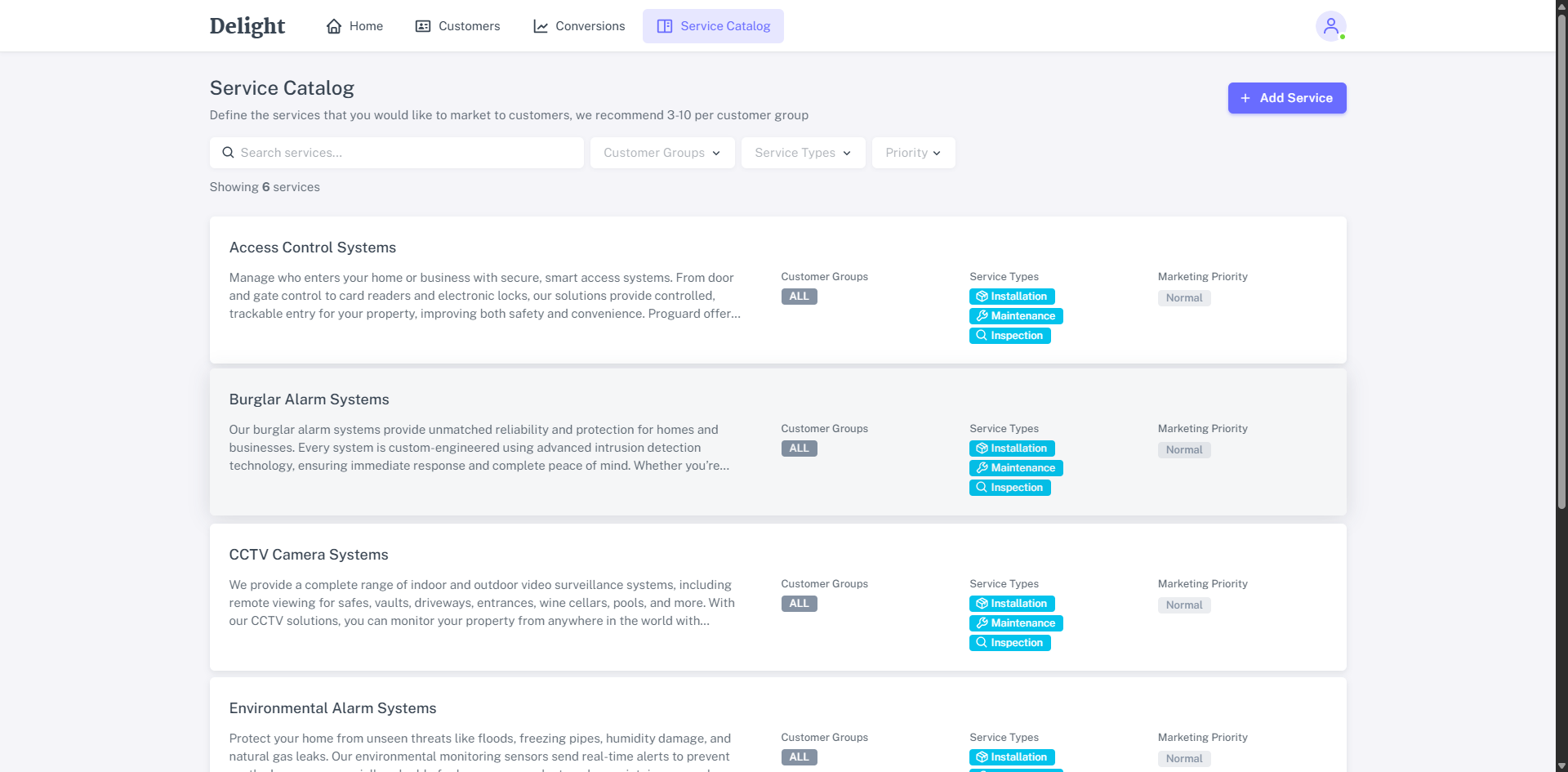
To add a service:
- Click + Add Service in the top right corner.
- Enter Service Name, Description.
- Select Customer Groups, Service Types.
- Enter Specific Targeting Instructions (optional).
- Update the Marketing Priority level if needed. (Default level is Normal.)
- Click Create Service.
You can select multiple Customer Groups and Service Types if needed.
Update a service
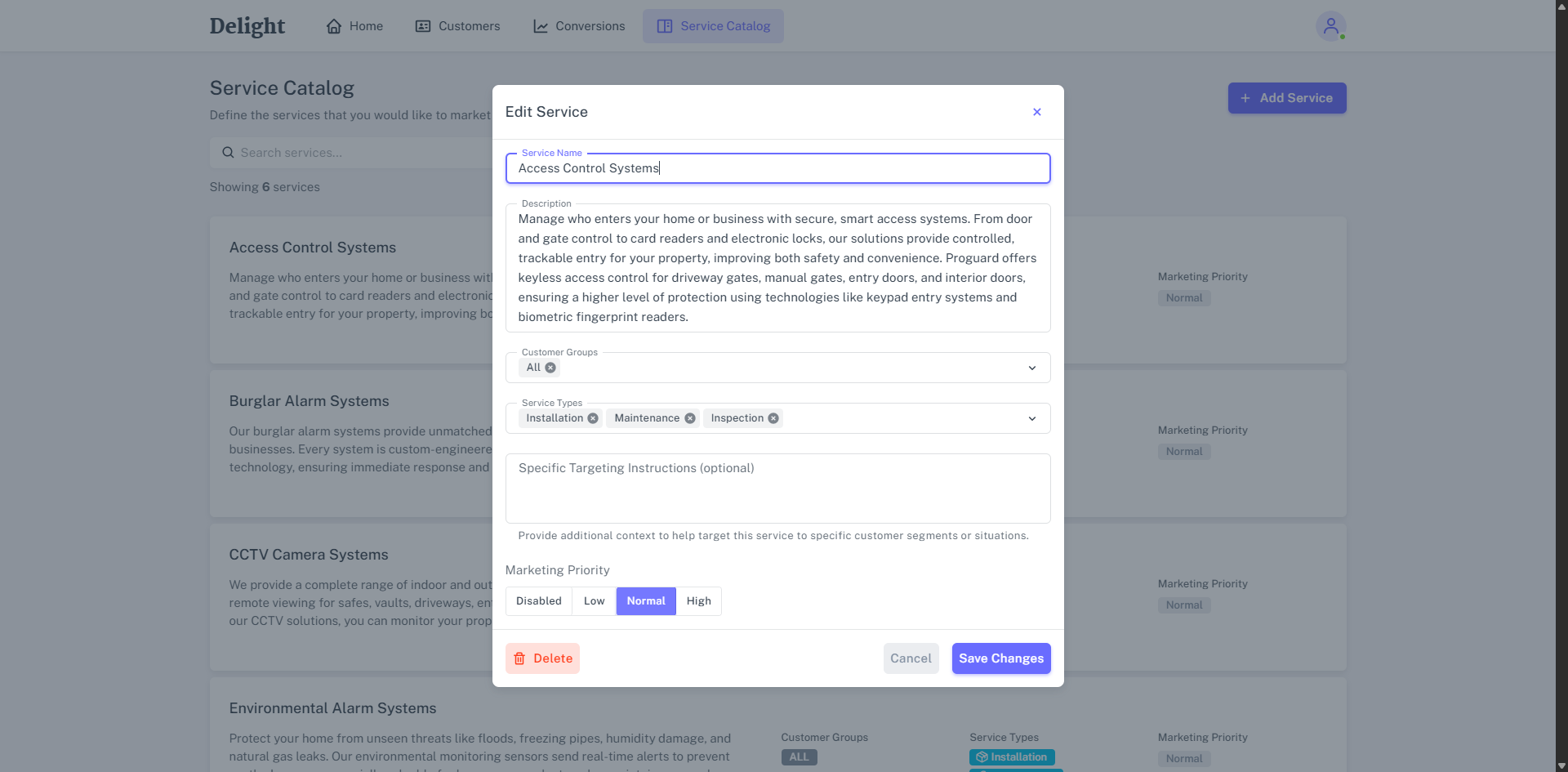
To update a service:
- Enter the service name in the search bar.
- Click the service name from the search results.
- On the pop-up service detail page, update the Service Name, Description, or any other information as needed.
- Click Save Changes.
Note:
- Each service name must be unique. You cannot update a service using a name that already exists.
- It is recommended to choose intuitive service names that are easy for both your customers and the system to understand.
Tips for creating/updating services
To help your services that can be created or updated more accurately represented and effectively targeted, we recommend:
| Field name | Details | Notes |
|---|---|---|
| Description |
|
|
| Customer Groups |
|
Select All to include all customers if needed, but the system will still prioritize logical matches for each customer. |
| Service Types |
|
For example, if your service name is “Heat Pumps,” specify whether it applies to Maintenance, Replacement, etc. |
Delete a Service
To delete a service:
- Click the specific service name in the Service Catalog list.
- Or, search for the service name in the search bar and click it from the results.
- On the pop-up service detail page, click Delete at the bottom left corner.
Deletion of a service is permanent and cannot be reversed. If you want to preserve the service for potential future use, update its Marketing Priority to Disabled and then click Save Changes instead of deleting it.