Last Updated: January 27 2026
How to Use the Marketing Dashboard
Overview
Get an overview of Delight using the Marketing Dashboard, including customer engagement, Activities, review scheduled emails and see the overall value of work generated by Delight.
When you first login to delight, you’ll see the Marketing Dashboard. Click the Home tab to return to this page.
By default, the Marketing Dashboard displays the values for a specific timeframe which by default is set to the last 30 days. To change the timeframe, click Last 30 Days and select a preset, or click Custom Range to choose specific dates.
 Financial Summary
The Marketing Dashboard displays the Total Quote & Job Value that is attributed to emails sent from Delight.
The Dashboard also shows a conversion breakdown, including the volume of Leads, Quotes, and Jobs that generated that revenue. Click on Leads, Quotes or Jobs to navigate to Conversions, with the Leads, Quotes or Jobs filter applied.
Customer Engagement
Customer Engagement displays the Total Contacted, Engaged, and Highly Engaged customer volumes in a line graph and a detailed breakdown of your average metrics and percentage rates in the Daily Averages sidebar. This helps you track engagement trends over time regarding how customers are responding to your outreach.
- The Total Contacted is the number of emails sent to various customers.
- Engaged indicates the number of emails that have been opened.
- Highly Engaged indicates the number of emails in which the customer has clicked the Call-to-Action button.
- Customer Engagement also displays the number of users whose emails were filtered to Spam, and those that have Unsubscribed.
Review Email Activities
Review emails to see the content that will be sent to the customer. From the email view, you may see the content, delete the email, and review the sending time and rationale for why the email was generated for the customer.
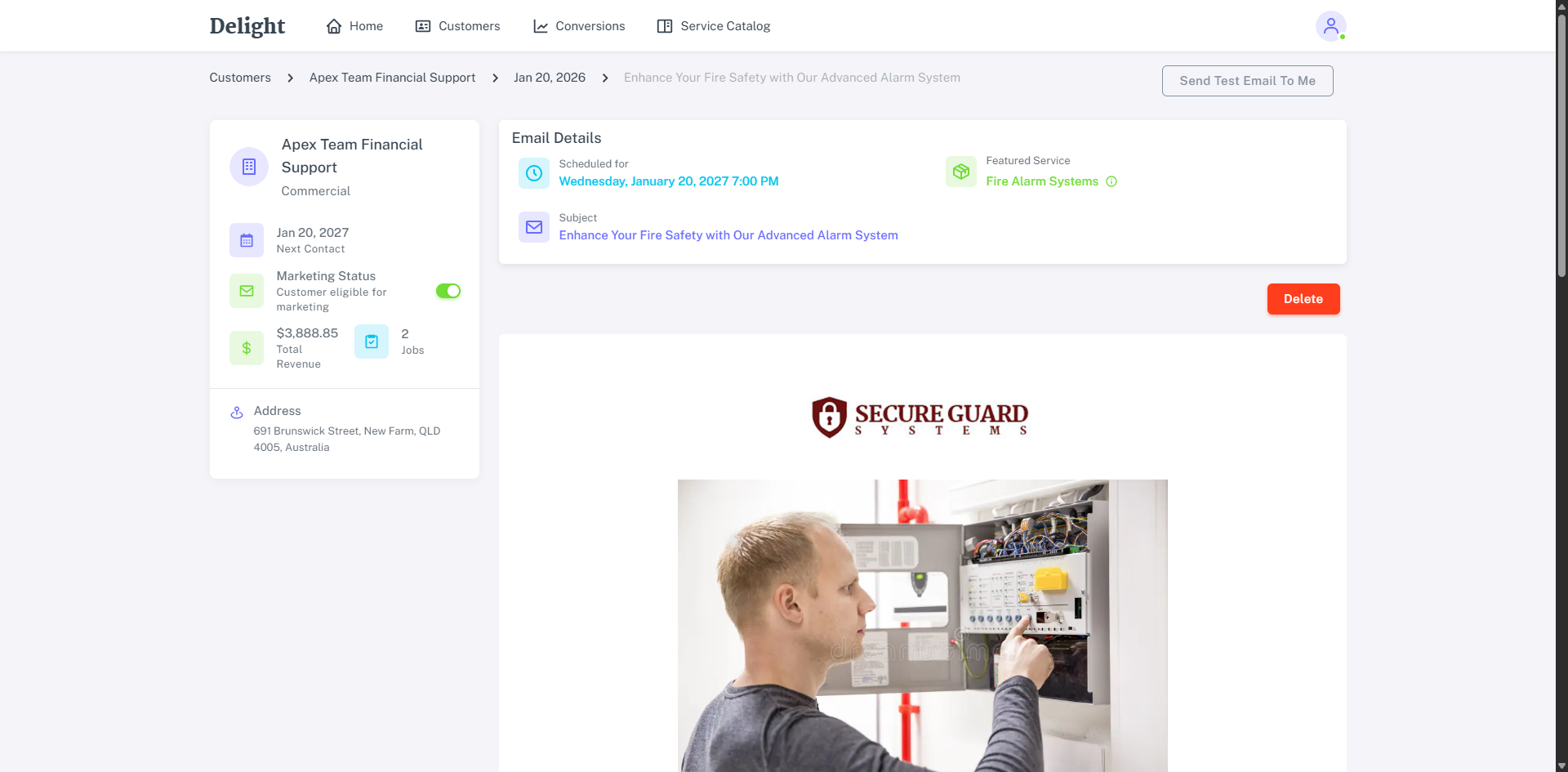
Email activities can be reviewed from the following locations in Delight:
- Click Home to navigate to the Marketing Dashboard and under Activities click Upcoming. You can also access Recent emails that have already been sent.
- Click Customers > Customer > Activities > Scheduled view.
- From the Delight Daily Summary email, which previews the emails scheduled for the following day.
Click on an email to access the following options:
- Click Send Test Email to Me to send a copy of the email to your email account.
- Review customer information, including the customer name, type of customer, when they’re next being contacted, enable or disable marketing emails, see their Total Revenue, quantity of Jobs and their Address.
- Review Email Details, including when the email is scheduled for, the subject of the email and click Featured Service to see why a specific service is being featured in an email for the specific customers.
- Delete the email to prevent it from going out.
- Note that if the email is deleted and marketing is enabled for the customer, a new email will be generated for sending the following day in most cases. Learn more in Email Settings.
- Preview the email and test links and the call to action button as required.