Last Updated: March 03 2026
Defect Management - Simpro Mobile - Beta
Overview

Technicians can rectify defects in Simpro Mobile via a rectification job.
Defects are recorded in the Defect Management tab within the Maintenance Planner. From there, they can be scheduled as a quote or a job for rectification.
Make sure you are using the most recent version of the app.
 Required setup
In order to view content or perform actions referred to in this article you need to have the appropriate permissions enabled in your security group. Go to System > Setup > Security Groups and access your security group to update your permissions. The relevant security group tab and specific permissions for this article can be found here:
Simpro Mobile Security Groups
Simpro Mobile users require the following:
Simpro Mobile Security Group > Service Module > Assets - Defect Management and Lifecycle
Defect recording
To report a defect as a Simpro Mobile user:
- Start work on a job.
- Tap Assets.
- Select +Test/Test Asset on an asset from the list.
- Review asset details, then tap Change and select a service level to test.
- Service levels may be predefined in Simpro Premium. However, those allowing technicians to create new assets will also enable them to change service levels.
- Fill in the test reading details, then select an asset result.
- Select Failed, then select a Failure Point and its severity. This information will be added to the job card / work order and recorded as a defect in Simpro Premium.
- Review and finalise the job.
When syncing this completed job in Simpro Mobile, Simpro Premium will receive a notification of any defects in the Alerts tab as an Asset Failure. These defects will then be visible in the Open tab of the Defect Management section within the Maintenance Planner.
Once a defect has been lodged, the next step is to quote the customer for the defect rectification job. Alternatively, users can proceed directly to creating a rectification job.
Complete a defect quote
Simpro Premium users will create a quote from the Defect Management tab.
For technicians scheduled for a quote:
- Start Work on the quote.
- Review the defect.
- Complete quote with customer and obtain Customer Quote acceptance.
- Finish work as normal.
Alternatively, you can Convert this quote to a job.
Once a quote is accepted, technicians have the option to create a new job in Simpro Mobile to fix while on site, or send the job card / work order to Simpro Premium to be scheduled later.
Rectification job
To action a defect on a maintenance job:
- Open the job and tap Start Travel/Work.
- Review the rectification defect by tapping View defects.
- Tap the drop-down on the defect to access more information, including Asset Details and Defect details.
- If the defect has been rectified:
- Tap the Circle and tap Rectified, then tap to Confirm.
- Continue marking any other defects in the list.
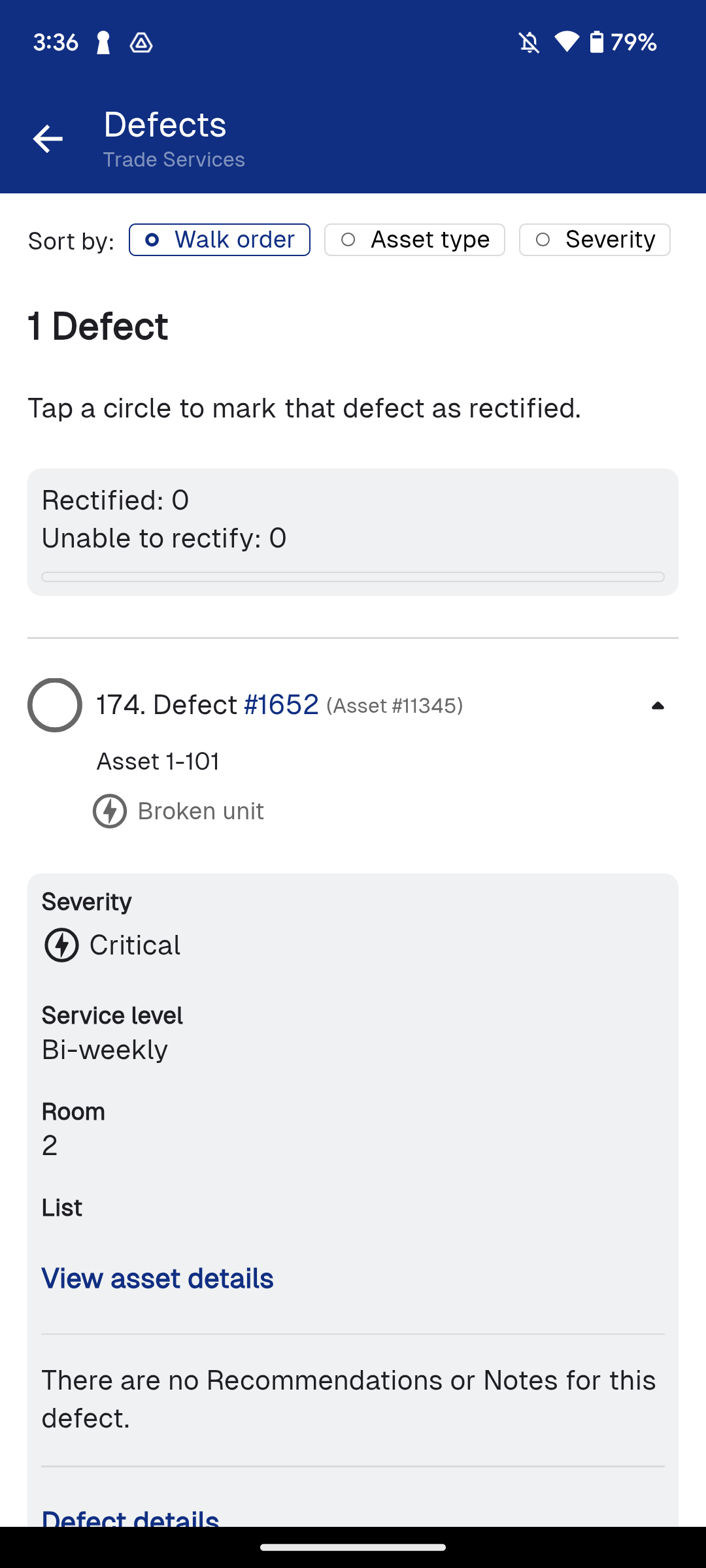
For any unrectified defects in a job, leave the circle blank or select Unable to rectify from the drop-down menu.
Once all defects have been actioned, scroll down and tap Review and Finish to complete the job.
Defect history
In assets there is the Defect History option, similar to Past Results the Defect History option gives information about the defect and keeps a log of action that has been taken.
Within a job in Simpro Mobile, tap the Assets Section and tap the drop-down of an asset. Then tap Defect History.
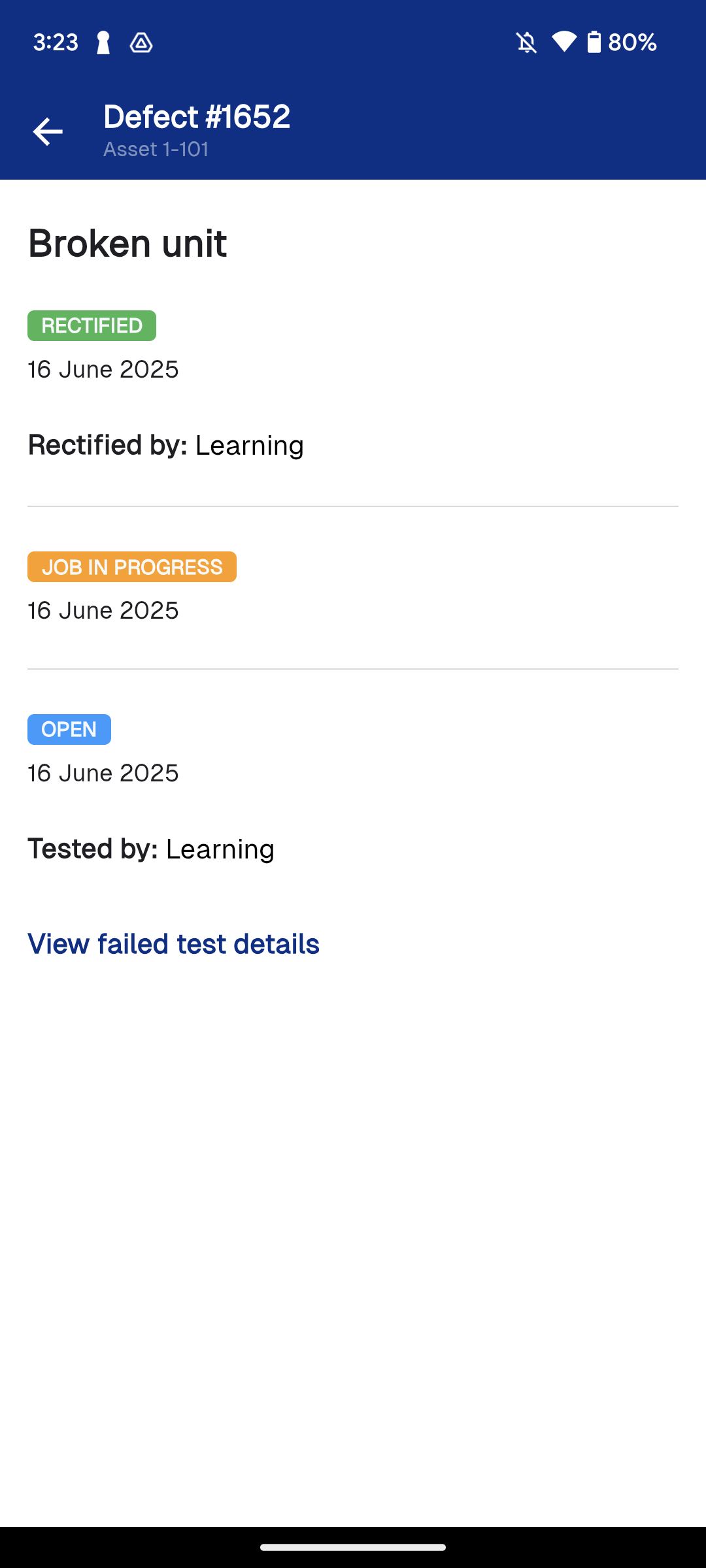
Opening this section will show all the movement that has occurred on the defect from when it was opened to when it was rectified.
You can also view the history of defects in the Sites tab of the assets menu to see any previous assets that may have been affected.
You will need to have the Defect Management and Lifecycle security group enabled to access defect history.