Last Updated: March 10 2026
Simpro Payments Simplified
Overview
Simpro Payments lets you accept card payments in Simpro Premium, through the customer portal, and in person with Simpro Mobile's Tap to Pay or Stripe Terminals.
Please note:
- Any Stripe accounts integrated with Simpro Premium before September 8, 2024, are considered legacy accounts
- Legacy accounts don't include features released after that date, including Simpro Payments on Simpro Mobile
- To get the latest features, you'll need to disconnect your old Stripe account from Simpro Premium and reconnect to create a new one.
 Required setup
In order to view content or perform actions referred to in this article you need to have the appropriate permissions enabled in your security group. Go to System > Setup > Security Groups and access your security group to update your permissions. The relevant security group tab and specific permissions for this article can be found here:
Activate Simpro Payments
To activate Simpro Payments with Stripe:
- Go to
System > Setup > Integrations > Stripe Payments.
- Review the Simpro Payments Terms and Conditions and select the checkbox to agree.
- Click Connect Simpro to Stripe.
- Follow the prompts to either create a new Stripe account or connect an existing one using the same email address.
A different Stripe account is needed for each Simpro Premium company if you have a multi-company setup and defaults aren't shared.
Learn more in How to Set Up Simpro Payments.
Create a payment method
You need to create a payment method for Stripe in Simpro Premium. You can do this from the Simpro Payments Integration page or by following these steps:
- Go to System > Setup > Accounts > Payment Methods.
- Click Create Payment Method.
- Enter a Name.
- Select Card as the Type.
- Enter a Posting Account No. and a Finance Charge.
- Click Create.
Learn more in Create a payment method for Stripe.
Add payment links to invoices
You can add a payment link to your invoices so customers can pay online.
- PDF Invoices: Go to System > Setup > Forms Setup > Invoice > PDF Templates > How to Pay. Under Payment Options, ensure Credit Card is assigned.
- Email Templates: Go to System > Setup > Forms Setup > Invoice > Email Set Up. In the Body text box, place your cursor where you want the link to appear and select Online Payment Link from the Insert Field section.
Learn more in Add payment link to invoices.
Accept payments
Once everything is set up, you can accept payments in various ways.
In-person payments
Tap to Pay
Tap to Pay lets you accept contactless payments directly on your mobile device. You need to enable Tap to Pay in both Simpro Premium and on your device.
- iOS: Requires an iPhone XS or later with at least iOS 16.7 (version depends on your region). A Business Apple account is needed, and a $1.00 test transaction is required for verification.
- Android: Requires Android 11 or later with NFC capabilities enabled in your device settings.
To process a payment in Simpro Mobile, select Tap to Pay as the payment method. The customer can then tap their card or mobile device to complete the transaction.
Learn more in How to Use Tap to Pay.
Stripe Terminals
Stripe Terminals are card readers that connect to your Simpro Mobile device via Bluetooth. You must order a terminal from your Stripe account and register it before use.
To process a payment in Simpro Mobile, select the Stripe: Terminal option. The device will sync with the terminal and process the payment.
Learn more in How to Use Stripe Terminals.
Online payments
Your customers can pay online directly from a link on their invoice or in the email you send them. When they click the link, they'll be prompted to enter their card details and billing address.
Learn more in How to Use Simpro Payments.
Automatic payments
For automatically generated recurring invoices, customers can set up automatic payments through the payment link in their email. This option is only available for the Primary Contact for invoices.
Once set up, payments are automatically applied to the invoice in Simpro Premium.
Learn more in How to Use Automatic Payments.
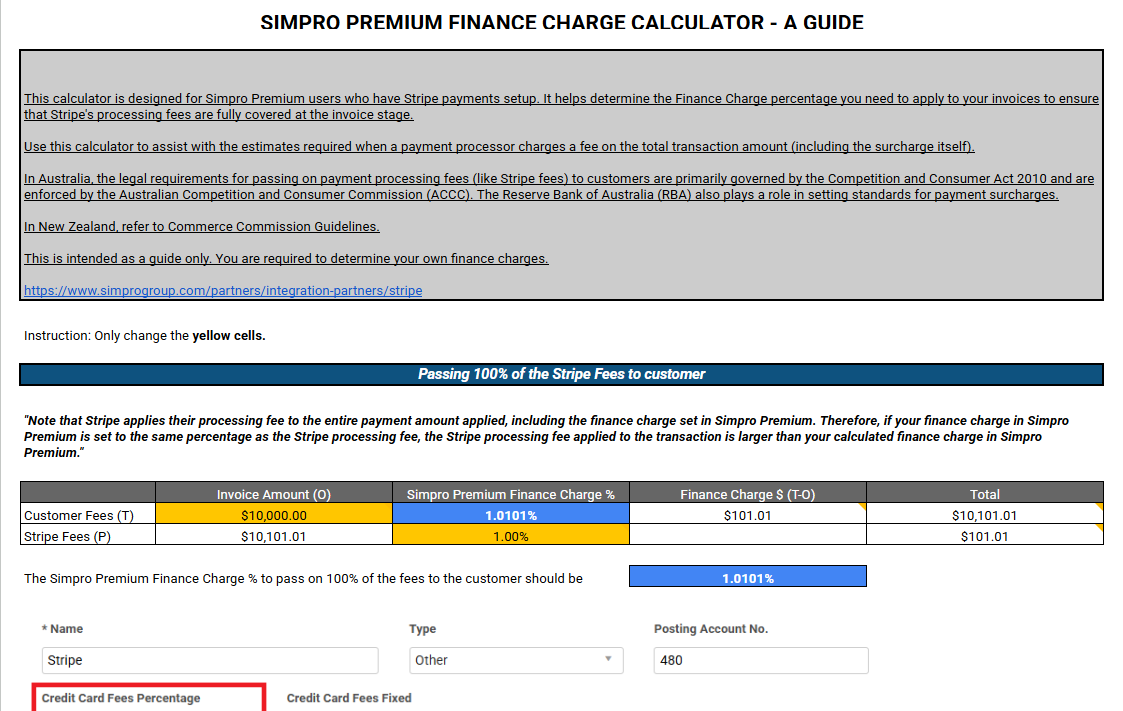
Stripe Transaction Fees Calculator
This calculator is designed for Simpro Premium users who have Stripe payments setup. It helps determine the Finance Charge percentage you need to apply to your invoices to ensure that Stripe's processing fees are fully covered at the invoice stage.
Use this calculator to assist with the estimates required when a payment processor charges a fee on the total transaction amount (including the surcharge itself).
IMPORTANT: In Australia, the legal requirements for passing on payment processing fees (like Stripe fees) to customers are primarily governed by the Competition and Consumer Act 2010 and are enforced by the Australian Competition and Consumer Commission (ACCC). The Reserve Bank of Australia (RBA) also plays a role in setting standards for payment surcharges.
In New Zealand, refer to Commerce Commission Guidelines.
This is intended as a guide only. Customers are required to determine their own finance charges.
Download and view: Stripe Transaction Fees Calculator
For more information about Simpro Stripe - Stripe
Simpro Payments Dashboard
After you have activated Simpro Payments, you can monitor your payment activity and manage your settings through the Simpro Payments dashboard.
Go to Simpro Payments to view:
- Dashboard: Overview of total balances and pay outs.
- Payments: A real-time list of all customer transactions processed through Stripe.
- Payouts: Information regarding funds transferred from your Stripe balance to your nominated bank account.
- Configuration: Access settings to enable or disable specific payment methods, such as Buy Now, Pay Later options.
To access this feature, enable the Simpro Payments Dashboard security group permission in Simpro Security Groups > Setup > System.